United States
Products
Printers
All-in-One Printers
Label Printers
Professional Imaging
Projectors
Home Entertainment
Scanners
Supplies & Accessories
Extended Service Plans
Point of Service
Weekly Specials
Clearance Center
Ink
Paper
Drivers & Support
Printers & All-in-Ones
Scanners
Projectors
Home Entertainment
Digital Photography
Other
Explore Epson
Epson Connect Wireless Printing
iProjection App
Projector Color Brightness
Videos
CreativeZone
Epson Store
Shop Epson Store
Weekly Specials
Clearance Center
Rebate Center
About
Company Overview
Careers
Newsroom
Environment
Contact Us
Other Epson Sites
Sign In
Track My Order
My Account
Reorder List
Product Registration
Help
Shopping Cart
Home
>
Support
>
Using the Epson iProjection for Android App
Projecting Photos
Projecting Documents
Projecting Web Pages
Using the Pen Tool
Using the Remote Control Feature
Projecting Photos
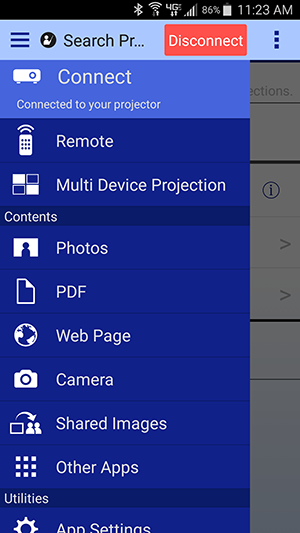
You can use the iProjection App to project .JPG and .PNG images.
Tap the
Photos
button on iProjection home screen.
Tap the photo album containing the photos you want to display.
Tap the photo you want to display.
Navigate the photo album using the following controls:
Tap
or swipe left to display the next photo in the album
Tap
or swipe right to display the previous photo in the album
Tap
to display the last photo in the album
Tap
to display the first photo in the album
Tap
to enable the Pen tool. See
Using the Pen Tool
for more information on this feature.
Spread two fingers apart to zoom in
Pinch two fingers together to zoom out
↑ Back to top ↑
Projecting Documents
You can use the iProjection App to project Adobe
®
PDF (.pdf, PDF 1.6, Acrobat
®
7 compatible or later).
Tap the
Documents
button on the iProjection home screen.
Tap the folder containing the document you want to display.
Tap the name of the document you want to display.
Navigate the document using the following controls:
Tap
or swipe left to display the next page or slide
Tap
or swipe right to display the previous page or slide
Tap
to display the last page or slide
Tap
to display the first page or slide
Tap
to enable the Pen tool. See
Using the Pen Tool
for more information on this feature.
Spread two fingers apart to zoom in
Pinch two fingers together to zoom out
↑ Back to top ↑
Projecting Web Pages
You can use the built-in web browser to navigate and project web pages.
Note:
You cannot project audio or video content with the iProjection for Android web browser.
Tap the
Web Page
button on the home screen.
Tap the address bar at the top of the screen.
Use the on-screen keyboard to enter the URL of the web page that you want to display.
Navigate the web page using the following controls:
Tap
to navigate back to the previous web page you visited.
Tap the menu button to access additional controls.
Tap
to navigate forward again after using the back arrow.
Tap
to display the Bookmarks menu. Tap any of the bookmarks to open a web page you have previously saved.
Tap
to display the History menu. Tap any of the listed items to visit a web page you have previously visited, or tap
Edit
to delete items from your browsing history.
Note:
The iProjection browsing history is not shared with other web browsing apps.
Tap
to open the Add menu and bookmark the current web page.
Tap
to open the Projector Control menu. See
Using the Remote Control Feature
for more information.
Tap
to enable the Pen tool. See
Using the Pen Tool
for more information on this feature.
Spread two fingers apart to zoom in on the current page.
Pinch two fingers together to zoom out of the current page.
↑ Back to top ↑
Using the Pen Tool
You can use the pen tool to annotate photos, documents, or web pages that you are currently projecting.
Display a photo, document, or web page.
Tap
to open the pen tool.
You can annotate the display and adjust the appearance of the pen using the following controls:
Tap
to enable the pen tool. Drag your finger across the screen to draw on the projected image. Tap the menu button, then
to change the color, weight, and opacity of the tool.
Note:
If you change slides, or navigate to a different web page or image, your current annotations will be lost.
Tap
to enable the eraser. Drag your finger across the screen to erase any lines you have drawn. Tap the menu button, then
to change the width of the eraser.
Tap
to disable the pen tool and clear any current annotations.
↑ Back to top ↑
Using the Remote Control Feature
You can use your Android device to control certain features on your EPSON projector.
Tap the menu button while in any display mode, then tap
to open the Projector Control menu.
You can control the projector using the following buttons:
Note
: The Input Sources and Control options will vary depending on the EPSON projector you are using.
Tap
to switch to the PC source
Tap
to switch to the video source
Tap
to switch to the LAN source
Tap
once to freeze the image, tap the button again to resume normal display
Tap
once to temporarily stop projection, tap the button again to resume normal display
Tap
to decrease the volume
Tap
to increase the volume
Note
: You can still use your projector's remote control while your product is connected to your Android device.
↑ Back to top ↑